
Set up publishing queues
Use recurring weekly slots and manage the content waiting for them.
A queue holds posts and assigns them to recurring publishing slots. It helps maintain a cadence without choosing a separate time for every item. Check the queue's timezone and default account explicitly.
Create a queue
-
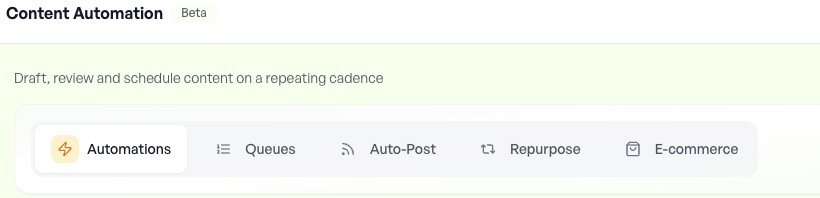
Open Automation → Queues and choose New queue.
-
Name the queue for its purpose and select the intended account.
-
Choose its timezone and add the days and times in the weekly slot grid.
-
Decide whether recycling is appropriate. Leave it off for dated offers, events or other expiring content.
-
Save and inspect the queue preview before adding a large batch.
Add and manage posts
Use Add to queue from a draft, Add post in the queue or a supported Repurpose destination. Inspect each item for final content and required approval. Reorder waiting items to control sequence; use shuffle only when order does not matter. Check Calendar to see which items have become scheduled and their resolved times. The queue's cooldown rules or slot optimization can move a proposed time.
Pause and recycle
Pause a queue when its content needs review. Then inspect Calendar separately for posts already scheduled from it; pausing a source does not by itself prove every existing scheduled action is cancelled. If recycling is enabled, confirm the minimum gap and review the content for continuing accuracy. Remove obsolete promotions before they return to the rotation.
Diagnose an idle queue
Check that the queue is active, contains ready items and has future slots. Then check its timezone, account connection, approval holds, cooldowns and usage warnings. An empty queue with recycling off has nothing to publish.
Understand when a queue item becomes scheduled
Adding an item to a queue puts it in the waiting list. The queue resolves a future slot in its own timezone and creates scheduled work; cooldowns can move the proposed time. Inspect Calendar to confirm the resolved schedule. The queue timezone can differ from the workspace timezone.
If the queue is idle, check whether it is paused, has ready items and future slots, and whether the destination, approval state or cooldown is preventing progress. Recycling needs a previously published item old enough for the minimum gap; an empty new queue cannot invent content.