
Generate and edit images
Use Image Studio, inspect results and attach the finished asset to a post.
Image Studio combines prompt-based creation, image editing and a gallery of results. Available tools and charges can vary. Read the estimate shown for the operation instead of assuming generation or edits are free.
See the screen
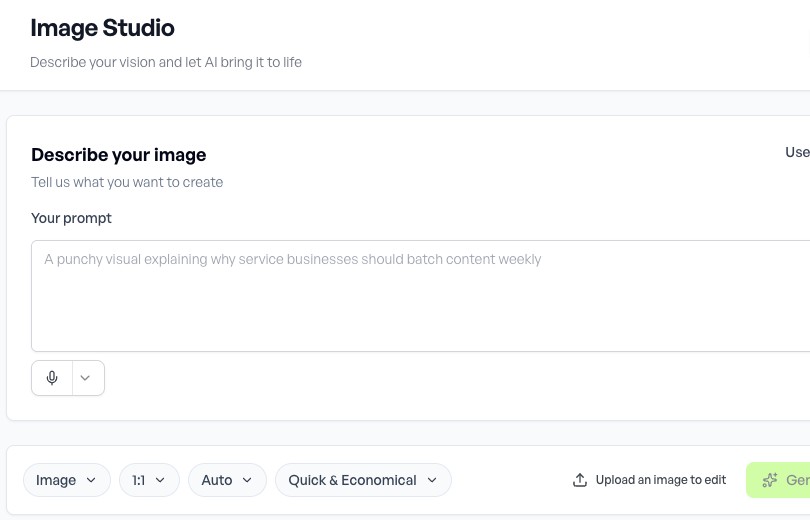
Generate a useful image
-
Open Create → Image Studio.
-
Describe the subject, setting, composition and intended use. Include orientation and any exact text that must appear.
-
Select the available style or size controls. Use an approved reference image when the tool supports it and you have permission to use it.
-
Review the estimate and choose Generate. Wait for completion before starting another attempt.
-
Open the result at full size. Check anatomy, objects, spelling, logos and whether the image supports the caption.
Edit a result
Open an image and choose Edit. Select an available operation, such as adding, removing or replacing an object, changing the background, editing text or changing style. Describe one clear change and inspect the result before saving. Some operations may be unavailable or marked as upcoming. Save the intended version so you do not accidentally use an earlier variation. Check text carefully after edits and translations.
Use and manage the asset
From the preview or gallery, choose Use in post to send the result to the composer, or download it for later. Confirm the media is attached to the intended post and inspect its destination-specific crop. The gallery is an asset collection, not a list of published posts. Deleting a gallery item can remove a reusable source; keep a needed copy first. See Media Library for organizing assets and Image Editor for layout and carousel work.
Use the controls and live estimate
The current screen offers Use my brand, a prompt field, content type, aspect ratio, style, quality and Upload an image to edit. Prompt starters give an editable starting point; inspect the prompt before generating. A generated gallery item is an asset, not a published post.
Read the credit estimate on the action you are about to run. Quality, generation and editing can have different charges; do not assume generation is free or that an older fixed edit price applies. Review the resulting text, composition and branding before using the image in the composer.