
The complete post composer
Write captions, attach media, configure each destination and publish with confidence.
The composer brings together the final content, exact destinations and publication timing. Open it from New Post, an empty Calendar slot or a “Use in post” action in a creative tool.
See the screen
1. Select the exact destinations
Choose the connected accounts that should receive this post. Check the account names as well as platform icons. A saved destination preset can fill the selection, but inspect the resulting accounts and skipped-channel notices. If several destinations need different wording or media, use their individual tabs or overrides. Do not assume one preview represents every selected network.
2. Write and refine the caption
Enter the main caption, then review the platform-specific version. Watch character counts after signatures, links and hashtags are applied. Add a clear call to action and test the destination URL. AI tools can draft or rewrite text. Check facts, claims, names and any text the tool added. Use content plugs for reusable snippets and post signatures for a recurring footer.
3. Attach the final media
Upload from your device or choose from Media Library. You can also send a finished asset from Image Studio or Video Creator. Wait for upload or processing to finish, check the order of carousel items and preview crops. For a video, inspect duration, orientation, audio and the thumbnail or cover where supported. Add useful alt text where the destination offers it. A generated asset is not automatically attached until you confirm it in the composer.
4. Complete platform settings
Select the intended format, such as an Instagram post, Reel or Story. Review audience and visibility settings. Depending on the network, the composer may ask for a Pinterest board, video title, business post type, call-to-action link, collaborators, content warning or first comment. Only use controls offered for the selected account and format. Check publishing channels for the main differences and threads and first comments for follow-on content.
5. Save, schedule or publish
Save draft keeps unfinished content. A planned draft date does not activate publication. Opening Schedule can start a scheduling handoff. The final scheduling submission creates the future publishing action; confirm date, time and timezone before submitting. Publish now submits an immediate publishing action. Read the final summary and any approval or cooldown warning. Resolve errors before confirming. If approval is required, the post remains held until the necessary reviewer accepts it.
6. Confirm the result
Open the post detail after submission. Check every destination separately. Wait for a completed result and a platform post link or ID before treating it as live. A successful response accepting the request is only the start of asynchronous publishing. If one channel failed, preserve successful results. Open the affected platform to check for an existing post before retrying. See Publishing status and recovery.
Read the current composer action bar
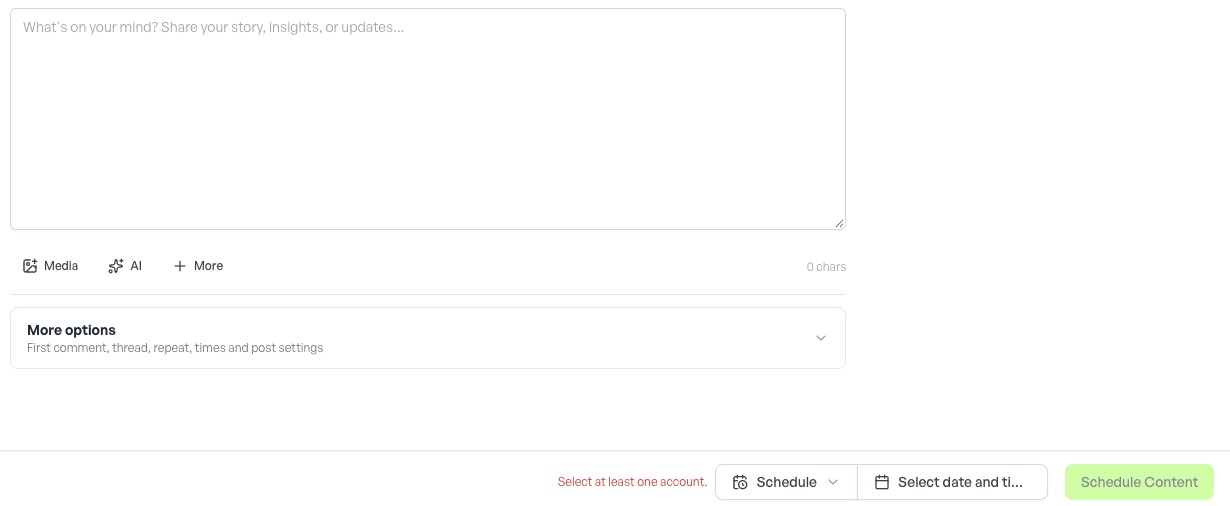
The current Schedule Content surface offers Single post, Repurpose, Bulk posts and Automatic tabs. In a blank post, choose accounts first. The Media, AI and More controls sit below the caption. More options can expose first-comment, thread, repeat and other post settings as destinations become available.
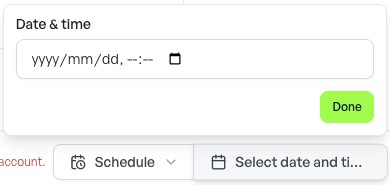
The bottom bar separates the action mode, date/time picker and final action. Read that final button every time; a date selection alone is not submission. Different entry points may show different composer layouts.
Save, reopen and check
In the current Schedule Content modal, open When to post at the bottom and choose Save as draft. This is an action, rather than a lasting publication mode. Wait for saving to finish, then use Content → Posts → Edit on the intended draft.
The draft editor has its own Save, Schedule and Post now actions. Schedule opens a scheduling handoff; do not confuse opening those controls with a completed schedule. Read the final action before submitting. The account preview may display sample labels such as Posted just now even while the item remains a draft.
Content navigation may first expand a submenu. Select Posts to reach the content list. Inspect saved state before leaving, and confirm the draft text after reopening.