
Plan and manage the calendar
See your publishing schedule, move posts and check the correct timezone.

Calendar shows prepared and scheduled content for the current workspace. Use its status labels to distinguish drafts, pending approvals, scheduled work and completed publications.
See the screen
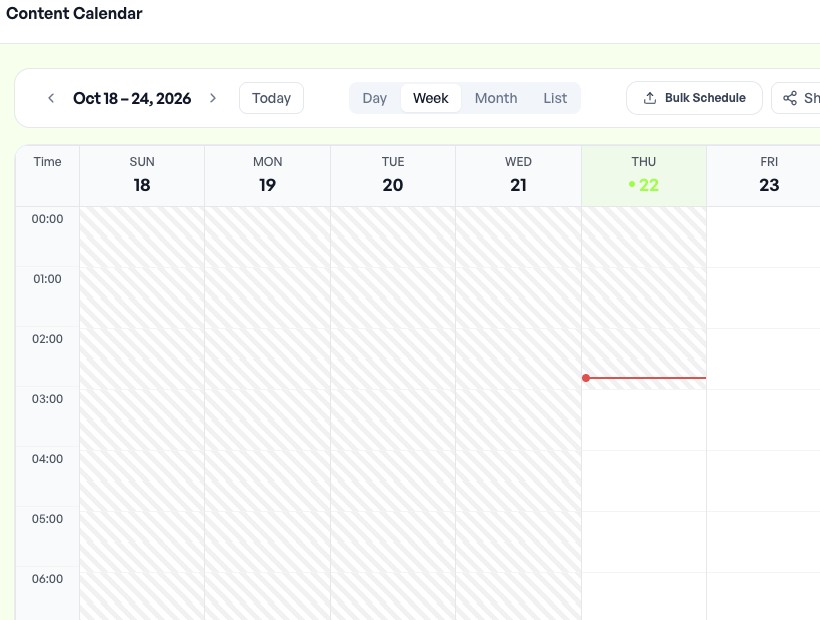
Read the calendar
-
Open Calendar and choose the available Week, Month or List view.
-
Set the date range and account filters. Clear filters before concluding that a post is missing.
-
Open a post to inspect its caption, media, exact accounts, scheduled time and approval state.
-
Check the timezone shown in the scheduling control. Browser, workspace and queue settings may affect how times are presented.
Create and reschedule
Click an empty day or slot to open the composer with a proposed date. Review that date and add a specific time before scheduling. Add accounts, caption and media, then check the final confirmation. To move an existing item, open its time control or use drag-and-drop where available. Read any confirmation and reopen the post afterward to verify the saved time. Moving a draft's planned date does not make it publishable.
Keep the plan reliable
Use account, campaign, status or queue filters to review one stream at a time. Check gaps and avoid crowding an account with closely spaced posts. Cooldowns and smart times can influence the final scheduled time. Inspect the exact selection before a bulk cancel action. Cancelling a future item does not remove an already published network post. Pausing an automation also requires checking any posts it has already scheduled. For apparent timezone errors, see Unexpected calendar times. For a post that remains pending, check Team Approvals.
Read the current Calendar controls
Use Today to return to the current period, then choose Day, Week, Month or List. Check account and status filters before concluding a post is missing. An empty grid can mean no items in that range or a restrictive filter.
On a touch device, open the post and edit its date/time if dragging is unreliable. Confirm the saved time in the post detail. Planned drafts can appear on Calendar without being scheduled to publish; check the status rather than its position alone.