
Social screenshot walkthrough
Move from composing a post to choosing its schedule, then find the image, inbox and automation controls used in a Social workflow.
STEP 01
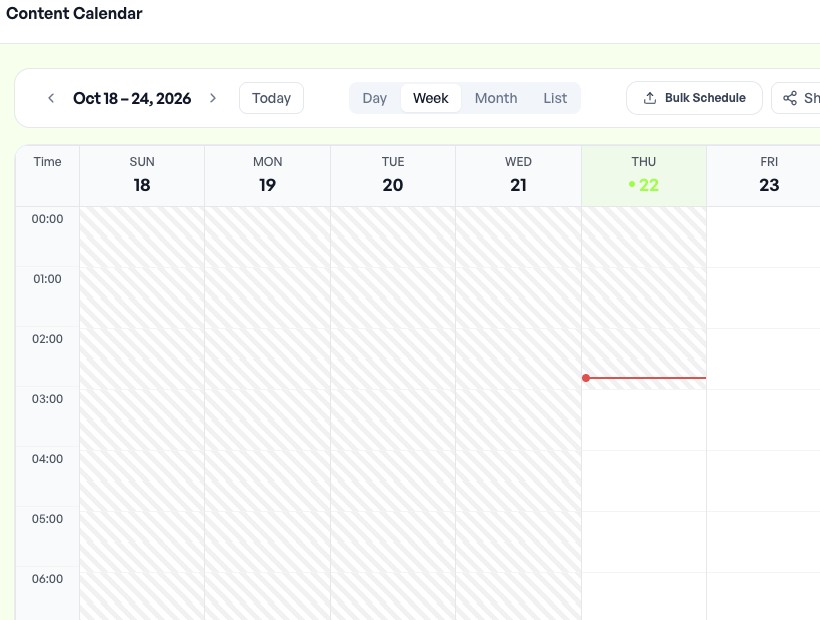
Plan in the calendar
Use the date controls, Today and Day / Week / Month / List tabs to choose the planning view. This current capture includes only the controls and date headings; post records are outside the capture.

STEP 02
Understand the calendar layout
Compare the calendar controls with the detailed calendar guide. This previously approved real capture from 22 October 2026 shows the broader layout without private post records.
STEP 03
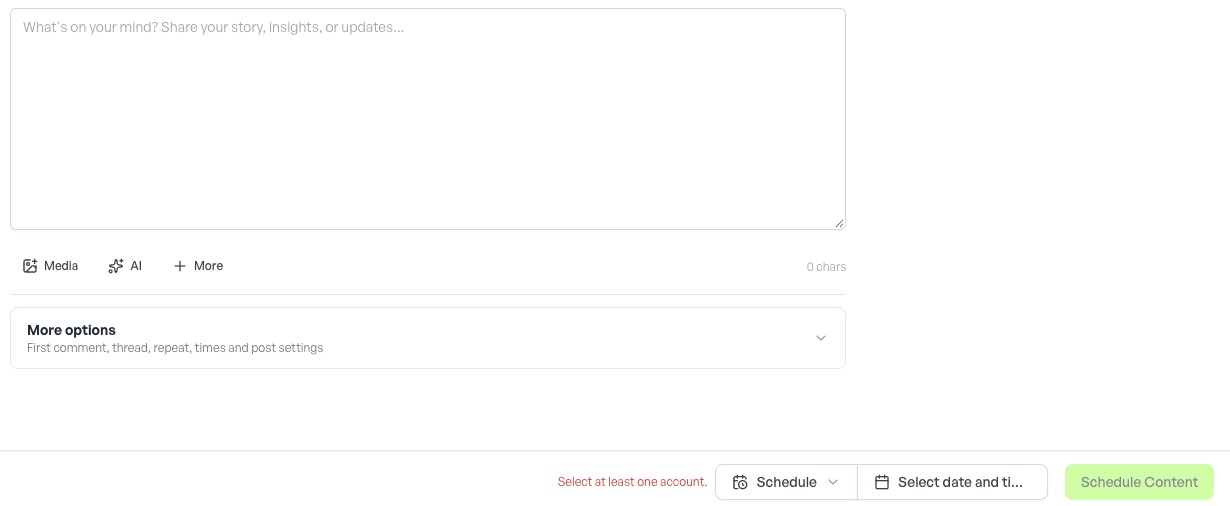
Compose and preview a post
Select the intended destinations, write the content and review each destination preview before scheduling. Real composer controls captured 22 October 2026.
STEP 04
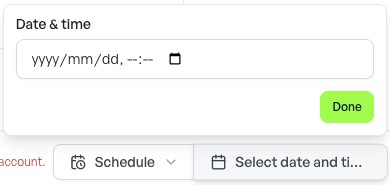
Choose a schedule
Check date, time and workspace timezone before applying the schedule. Real scheduling controls captured 22 October 2026.
STEP 05
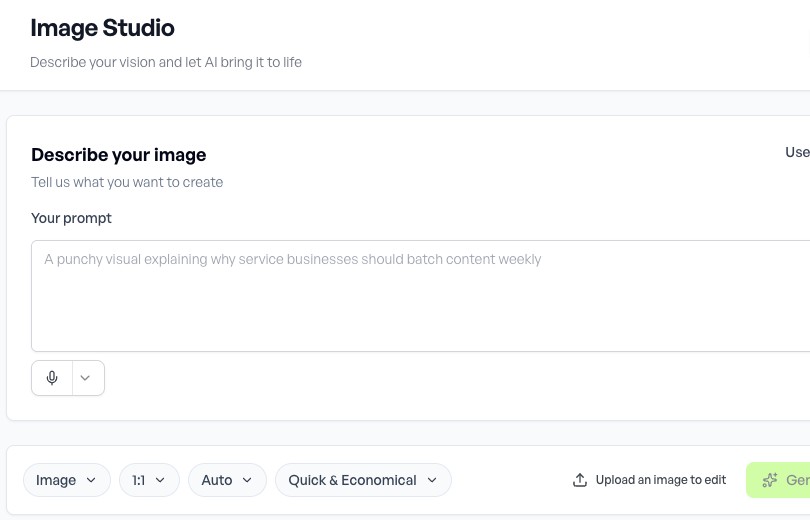
Work with images
Use the Image Studio controls described in the image guide. Review the selected asset and destination before using it in a post. Real interface captured 22 October 2026.
STEP 06
Review conversations
Use the Social inbox controls to choose the intended conversation and review it before replying. Real navigation controls captured 22 October 2026; conversation contents are excluded.

STEP 07
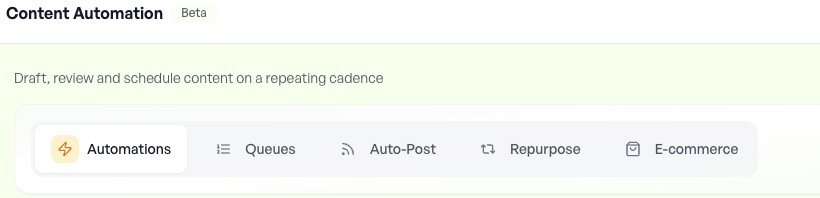
Find automation settings
Choose the automation workflow that matches the task. Opening settings does not mean an automation is enabled. Real navigation captured 22 October 2026.
Screenshots show interface states, not proof of a completed registration, published post, payment or connected integration. Follow the state shown in your own account.