
Your first post, step by step
Set up your brand, connect an account, prepare a post and verify the result.
Start with one workspace, one social account and one draft. This guide takes you through the complete publishing path. An account connection or a saved draft alone does not put a post online.
1. Choose the right workspace
Open DigLab Social and check the workspace name in the sidebar. Each workspace holds its own brand settings, accounts, content and team. If you manage clients, switch into the client's workspace before adding anything. Open Workspace / Settings → General. Set the public business name and logo, then save. In Brand voice, describe your audience, main offer, tone and words to avoid. Add a few approved examples. See Brand Profile.
2. Connect a publishing account
Open Settings → Social accounts, choose Connect account, and select a platform. Complete authorization on the platform's own screen. Choose the correct page, profile or channel and allow the permissions needed for publishing. Return to Social and check that the account is connected in this workspace. A platform logo alone is not enough: verify the account name. See Connect social accounts.
3. Prepare the draft
Choose New Post, or open an empty Calendar slot. Select the exact account, enter your caption and attach the final image or video. You can also ask Chat to draft content, then send the result to the composer. Inspect each destination preview. Check spelling, links, crop, video cover, alt text and any required board, title or visibility setting. Use Save draft while you are still preparing the post.
4. Schedule or publish
For a future post, open the date/time picker, check the displayed timezone and choose a future time. For an immediate post, choose the publish action deliberately. Read the final destinations and action before confirming. If your workspace requires approval, the item may become Pending approval. An owner or administrator must review it before it can publish. A planned date on a draft is only a planning aid.
5. Verify the outcome
Open the post in Calendar or Content. Check the status for every selected account. Processing or accepted means the request is still running. Confirm successful completion and open the resulting platform post when a link is available. For a partial failure, verify which accounts already succeeded, fix the failed destination and retry only that destination. See Publishing status and recovery.
What to do next
Use the screenshot tour alongside the full composer guide. Plan the next week in Calendar, then measure published results in Analytics.
Confirm the first result before scaling
For the first run, use one intended destination. Check its connection, caption, media, action and time, then inspect the final destination result. A connection badge, preview, accepted request or approval alone is not a live post. Use the workflow checklist to choose your next route.
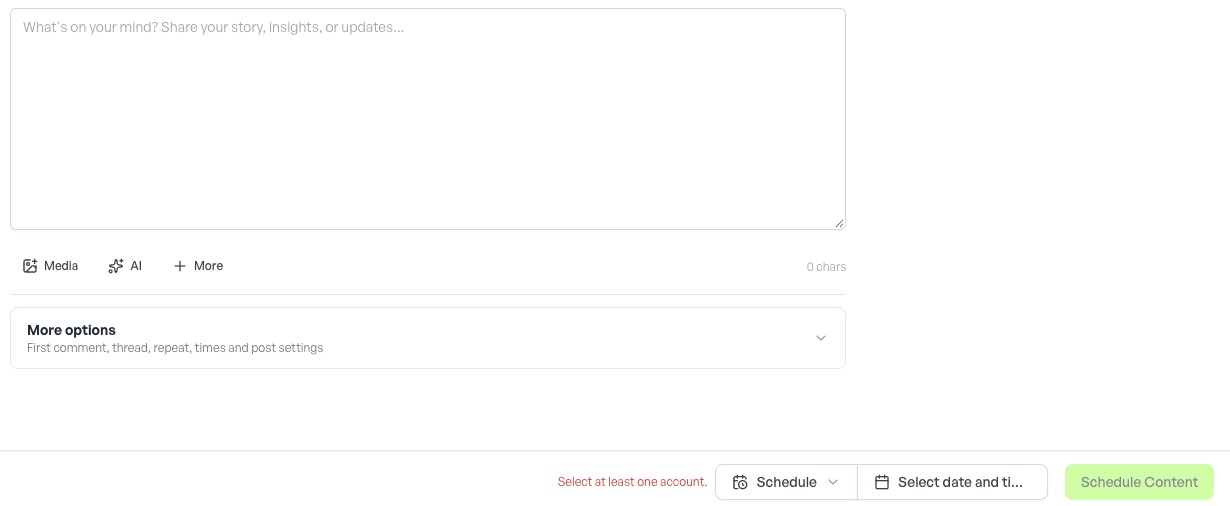
Practice with a draft
Use this practice path before your first publication:
- Check the workspace name. Open New Post and select one intended, available account. A disabled destination or reconnect warning needs attention before publication.
- Enter a short caption. Inspect the account preview, links, character count and media. The preview's Posted just now text is sample presentation; it does not mean the post is live.
- Open the bottom When to post menu and choose Save as draft. This action saves and closes the composer; wait for the save result.
- Expand Content, open Posts, find the saved draft and choose Edit. Check that the caption and intended platform are retained.
- From the draft editor, Schedule can open Calendar and a scheduling composer. Inspect the destination, date and action. Complete a separate final scheduling action only when you intend to schedule.
A draft can have a planned date and appear on Calendar while still labelled Draft. Verify the status before assuming it will publish. If the editor is minimized, restore it to continue or close the minimized composer after confirming the saved status.
Need guidance again? Bookmark this help center, then choose the visual walkthrough or workflow checklist.